

sertool
Compress SER captures losslessly, verify every file before anything is deleted, and work through a whole folder unattended — from the standalone SER Tools app, or from the command line. Provided free by BiggSky, for Windows, macOS and Linux.
High-speed imaging fills a drive faster than anything else
Planetary, lunar and solar captures run to thousands of frames each, several a night. sertool makes those files smaller without altering a single pixel, and proves it before you lose the original.
Lossless
Every pixel comes back exactly as captured. This is compression, not conversion — nothing is resampled, requantized or re-encoded to a lossy format.
Verified
Each file is decompressed and checked against the original before anything is removed. If verification does not pass, the source stays exactly where it is.
Unattended
Point it at a folder and leave it. It works through the tree on its own, keeps a timestamped log if you ask for one, and skips what it has already done.
.ser as a stream of bytes and has no idea
those bytes are pictures, so there is very little for it to find. The .mj2
encoder is built for images and models each frame in two dimensions — which is where
the saving comes from, and why it typically lands well below a zip of the same capture.
Already zipped? Point sertool straight at the .ser.zip; it reads them directly.
SER Tools
The same work in a standalone app of its own: a Compress tab and a Decompress tab, each with a file list you tick and a row of options.
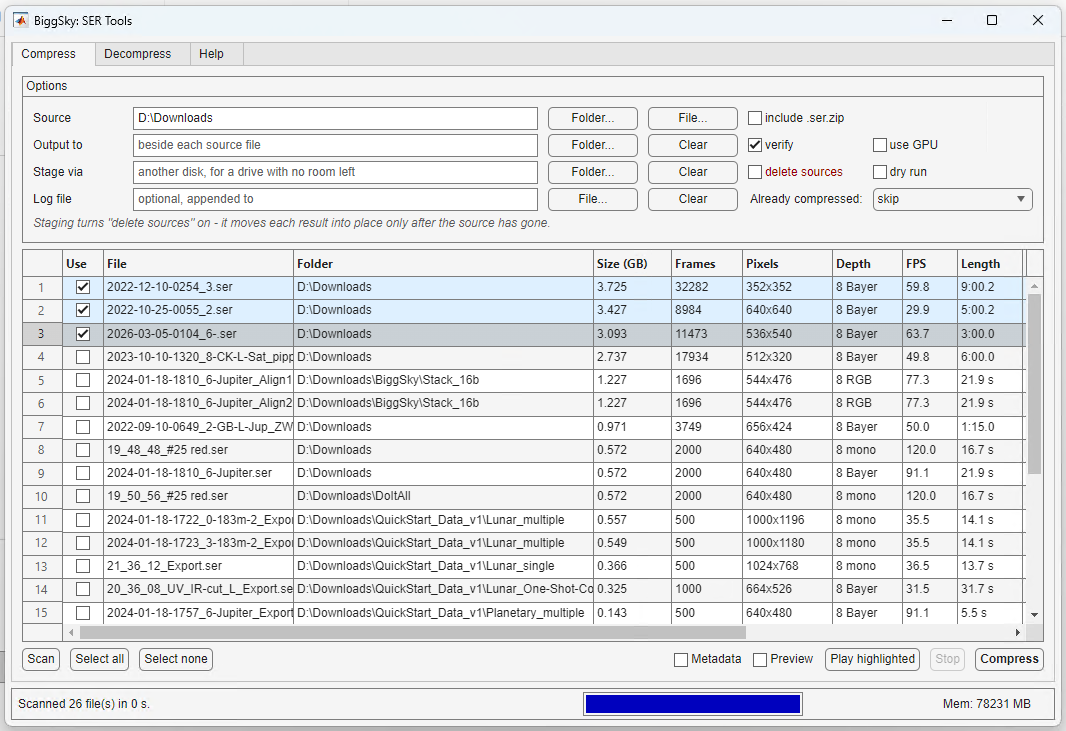
See before you commit
Choosing a folder lists what is in it straight away. Scan then opens the files you ticked and fills in frame count, pixel size, bit depth, capture rate and duration — so you know what you are about to process.
Preview and play
Preview, Play and Metadata follow the highlighted row. Frames are subsampled and contrast stretched on the way to the screen, so a 4656 × 3520 16-bit lunar frame is legible without pulling the whole movie into memory.
Sort it your way
Click a column heading to sort by it, click again to reverse. Sort on size to put the biggest captures first, on folder to bring one night together, or on status to see what has already been done.
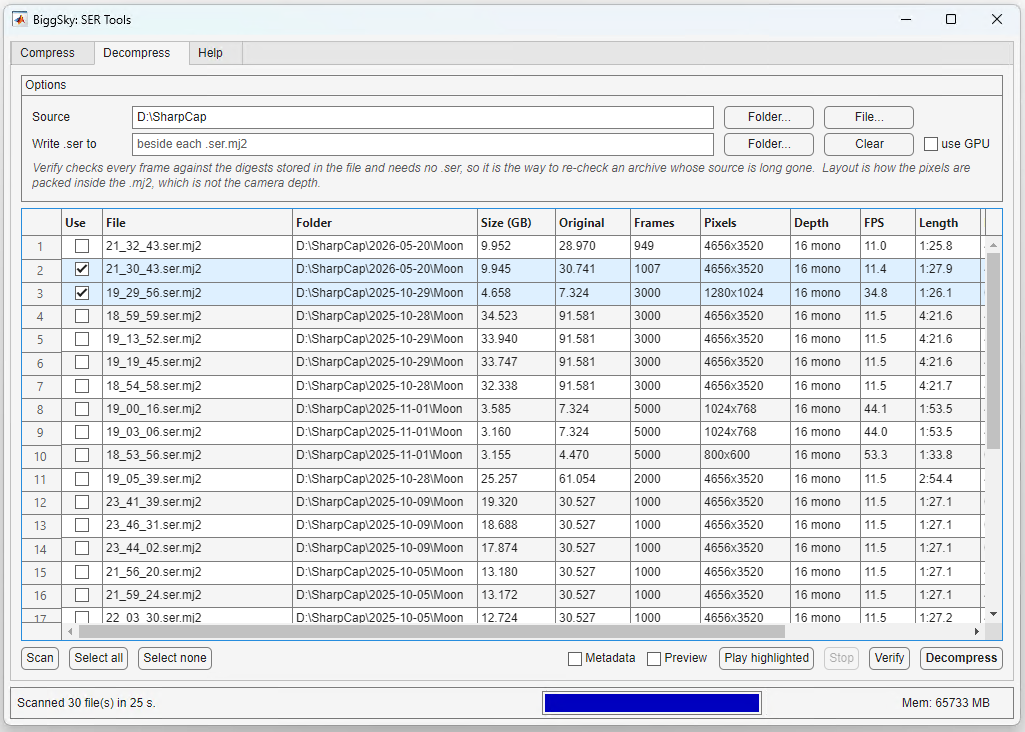
.ser to compare against — so it is the way to re-check an archive whose original is long gone.Commands
The same tool without the window, for scripting, scheduled tasks and machines you drive over a remote session.
sertool compress   <in.ser|in.ser.zip> [out]  [-noverify] [-nogpu] [-quiet]
sertool decompress <in.ser.mj2> [out.ser]     [-nogpu] [-quiet]
sertool verify     <in.ser.mj2>               [-nogpu] [-quiet]
sertool info       <file.ser|file.ser.mj2>
sertool tree       <folder> [options]
sertool version
Exit status is 0 for success, 1 for failure and 2 for a usage error, so it drops straight into a batch file or a scheduled task.
On macOS and Linux it is typed ./sertool, in the folder it is installed in. The About tab of the window shows that folder, and opens a terminal there.
sertool tree
The one most people end up living in. It takes a whole capture folder and works through it.
-delete | Delete each source once its own file has verified. |
-dryrun | List what would happen and touch nothing. |
-stage <dir> | Write results to another disk first, then move them back once the source is gone. Implies -delete. |
-out <dir> | Put results here instead of beside each source. |
-existing <what> | skip, redo or verify. Default skip. |
-max <n> | Stop after n files. |
-log <file> | Append a timestamped record. |
-zip | Include .ser.zip archives. |
-noverify | Skip verification. Also disables -delete. |
-nogpu | Use the MATLAB encoder even where a GPU is present. |
Smallest files first
A nearly full drive unblocks itself. Working smallest-first frees space early, so the large captures have somewhere to go by the time their turn comes.
Nothing goes until it verifies
A source is deleted only after its compressed copy has been read back and checked. A file that fails verification costs you disk space, never the capture.
serview
A small player for .ser and .ser.mj2, installed alongside sertool. It needs no MATLAB Runtime, so it is the one to pass on with a capture to someone who has none of this installed.
Plays it properly
Any media player opens a .ser.mj2, but a 16-bit capture shows every other frame black and the picture comes out nearly dark. serview drops the extra planes, stretches the brightness so the planet, Moon or Sun is visible, and plays at the rate the camera actually ran, from the capture’s own timestamps.
Double-click a capture
Associate .ser and .mj2 with it and a double-click opens the movie — servieww.exe on Windows, serview.app on macOS, and ./serview -associate on Linux, which also puts SER Tools in the applications menu.
Plays through FFmpeg
The decoding and the window are ffplay’s, part of FFmpeg — free, and a one-off install: winget install Gyan.FFmpeg, brew install ffmpeg or sudo apt install ffmpeg. serview checks that the build has what it needs, and says so if not.
From a prompt or a terminal in its folder — ./serview on macOS and Linux:
serview capture.ser.mj2        play it
serview capture.ser -info      what the file holds, and whether FFmpeg is ready
The same tool on all three
SER Tools, sertool and serview come for Windows, macOS and Linux, and an archive written on one opens on the others.
Windows
A Start menu entry for the window, and sertool at a command prompt. On a machine with an NVIDIA card, large frames are encoded on the GPU, where that is faster. The programs are code-signed.
macOS
For Apple silicon Macs. Signed and notarized by Apple, so it opens without a Gatekeeper warning. ./sertool in Terminal, and serview.app for the Finder.
Linux
Installs under /usr/local. ./sertool and ./serToolsApp from its folder, and ./serview -associate puts both in the applications menu.
Download SER Tools
Version …, released …. One installer for each platform puts in SER Tools, sertool and serview — you do not need BiggSky to use them.
Loading download links…
Free to use and free to pass on, and provided without warranty — please read Use at your own risk below before trusting it with captures you cannot retake.
Your captures are not locked in
A .ser.mj2 is Motion JPEG 2000 with one extra metadata box. Any JPEG 2000 decoder already reads the pixels.
That matters for archives you intend to keep. sertool can always turn one back into the exact .ser it came from, but you should not have to depend on sertool still existing — so the format is written down in full, and anyone is free to implement it.
The specification covers the container, the metadata box field by field, the handful of pixel layouts, and how to check a file against the checksums it carries. It includes working C for the parts that are specific to this format, compiled and tested against real archives.
Use at your own risk
sertool is provided free of charge and without warranty of any kind. It is supplied “as is”, without express or implied warranty of merchantability, fitness for a particular purpose, or non-infringement. You use it entirely at your own risk.
To the fullest extent permitted by law, KB Imaging Solutions and BiggSky accept no liability for any loss of data, loss of images, loss of profits, or any other direct, indirect, incidental or consequential damages arising from the use of, or inability to use, this software — even where the possibility of such damage has been raised.
-delete option is off unless you ask for it. Even so, irreplaceable data deserves a backup that does not depend on any one tool. Try it on copies first, satisfy yourself that the results decompress correctly, and keep a second copy of captures you cannot retake.
Nothing here limits any right you have that cannot be limited under the law that applies to you.
Part of BiggSky
sertool comes from BiggSky — stacking, deconvolution and processing for planetary, lunar, solar and deep sky imaging. The tool is free to use and free to pass on, whether or not you ever run BiggSky itself.