

Dewarp Movie Manual
See the seeing. Create Dewarp Movie… shows your video frame by frame after registration, the same frame after BiggSky has dewarped it, and a colored map of the turbulence the dewarp removed – a way to check what the second alignment pass is doing to your data.
Makes a movie that shows the atmosphere at work on your video. For a block of frames it shows, frame by frame, the image after registration, the same image after BiggSky has dewarped it, and a colored map of the turbulence that the dewarp removed. It is a way to see the seeing, and to check what the second alignment pass is doing to your data.
Dewarp Movie stacks the block on the side. Your project, the dataset's frame selection, the Stack tab and every other setting are left exactly as they were. The result is a new dataset in the project, a movie file, or both.
Dewarp Movie is available in the Solar System editions (SSE Lite and SSE Pro) and in Universe. It needs a dataset of at least 10 frames (a SER, AVI or frame set) with the target type set to Lunar, Planetary or Solar.
What the panels show
| Panel | What it shows |
|---|---|
| Register | Each frame after registration: shifted into place as a whole, but still distorted by the seeing. |
| Dewarp | The same frame after the dewarp (the second alignment pass) has pulled its local distortions back into place. |
| Turbulence Map | The distortion the dewarp removed. Color gives the direction of the local shift and its strength gives the size; no distortion is white (or black with the dark style). A pixel reaches full color at the Full color at (px) value. |
| Color Overlap | The Register frame tinted with the Turbulence Map colors, so you can see which parts of the object are moving. |
Watching the map against the Register and Dewarp panels shows the "boiling" of the seeing, how large the turbulent cells are, and how quickly they change from frame to frame.
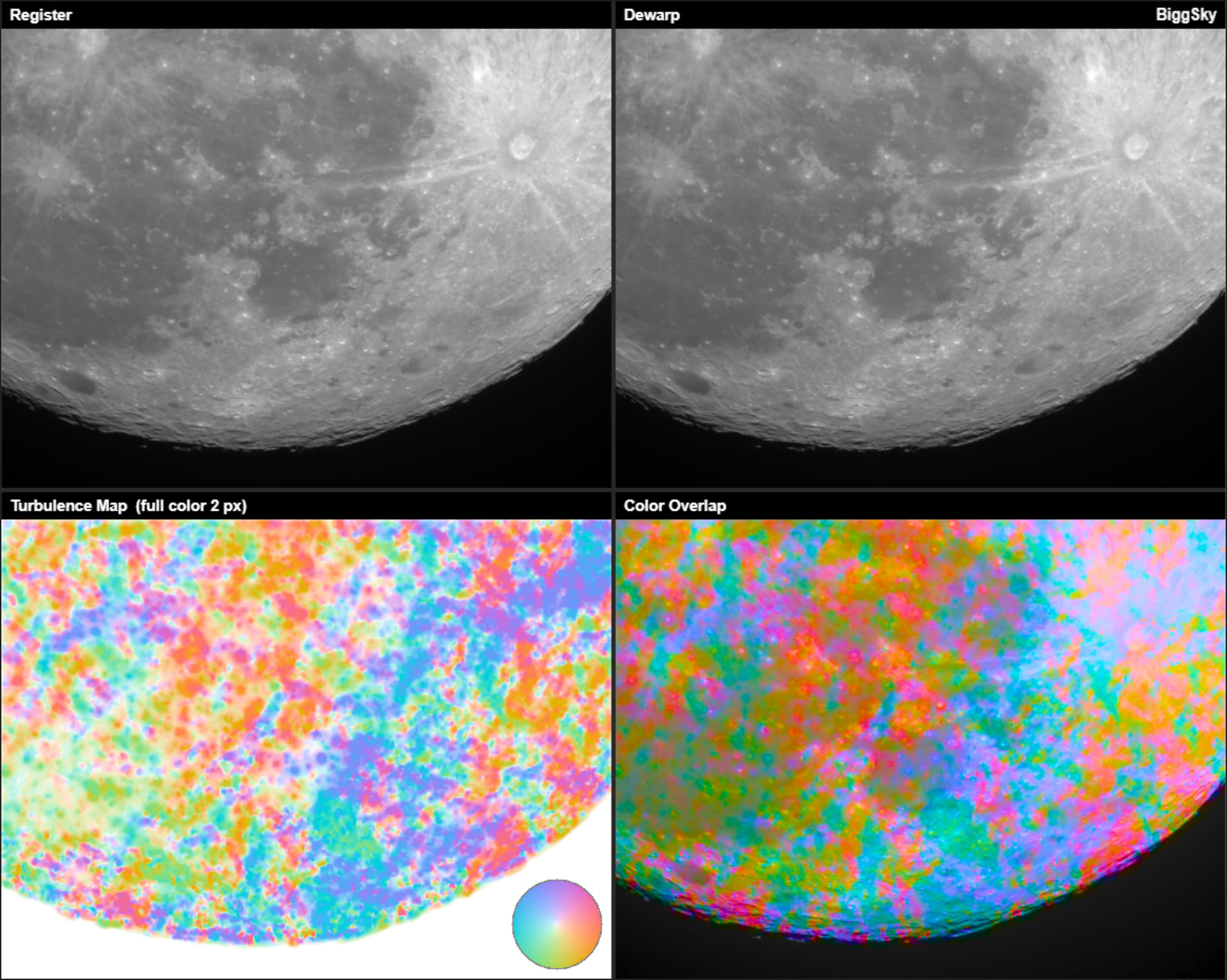
Note: the map shows local distortion only. The overall shift of each frame is removed by registration, and the average shift that remains is taken out of every frame before it is drawn.
The dialog
The dialog's title line shows the dataset name and its number of frames. Below it is the dataset's frame quality curve, with the block you have chosen shaded in blue.
| Control | What it does |
|---|---|
| Start frame | The first frame of the block, as a capture frame number. |
| Frames | How many frames the block holds, from 2 up to the whole video. Default 200. |
| Best block (quality) | Moves the block to where the mean frame quality over Frames frames is highest. If the dataset has not been analyzed yet, it offers to run Analyze first. |
| Layout | Which panels to show (see below). |
| Arrangement | Side by side, or Stacked (portrait) for a tall movie, for example for social media. In portrait the 2 x 2 layout becomes a column of four. |
| Binning (N x N) | Shrinks the frames and the map by 2, 3, 4, 6 or 8 in each direction before drawing. Use it for large lunar and solar frames, or to keep a GIF to a reasonable size. The map's color scale is still in the original pixels. |
| Movie about W x H px | The approximate size of the finished movie, and the size of the source frames. It updates as you change the layout, arrangement, binning and captions. |
| Map style | light: no distortion is white. dark: no distortion is black and the turbulence glows. |
| Full color at (px) | The shift, in pixels, that is drawn at full color. Smaller values make weak turbulence more visible. Default 2, or the stack's AlignDewarpMapMax. |
| Fade the sky | Fades the map to nothing over empty sky, where there is no detail to measure and the map would only show noise. |
| Captions | A label strip above each panel. |
| Color key (circular) | A color wheel in the corner of the Turbulence Map (or of the Color Overlap when there is no map) showing which color means which direction. |
| Corner caption | Text in the top-right corner of every frame. Default BiggSky; leave it empty for none. |
| Add to the project as a dataset | Adds the movie to the project as a new dataset, stored as a lossless Motion JPEG 2000 (.mj2) file. This is written in addition to any movie file. |
| Save a movie file | Also writes a movie in the chosen format: MPEG-4, Motion JPEG AVI, Uncompressed AVI, Motion JPEG 2000, Archival, GIF or animated PNG. |
| Frames per second | The playback rate of the movie file. |
| Keep the stack | Keeps the side stack's working files, so you can remake the movie of the same block later without stacking it again. |
| Reuse the kept stack of this block | Skips the stack and goes straight to drawing the movie. Available only when a finished stack of exactly this block (same start and number of frames) was kept; the date it was stacked is shown. |
| Create | Starts the run. |
| Cancel | Closes the dialog without doing anything. |
At least one of Add to the project as a dataset and Save a movie file must be ticked.
The layouts are:
| Layout | Panels |
|---|---|
| Color Overlap | Color Overlap alone. |
| Turbulence Map | Turbulence Map alone. |
| Register | Dewarp | Before and after the dewarp. |
| Register | Turbulence Map | The frame and its turbulence. |
| Register | Dewarp | Turbulence Map | All three in a row. |
| Register | Dewarp / Turbulence Map | Color Overlap (2 x 2) | All four in a square. The default. |
The dialog's starting values come from your current settings: the map style, sky fade and full-color value from the stack settings for this target type, and the movie format and frame rate from the Movie tab. Once you have used the dialog it remembers your last choices until BiggSky is closed.
Running it
Progress is shown in the main window's progress bar, as for a normal stack, and the main Cancel button stops the run. There are two stages:
- Stacking the block. The block is stacked with your current Stack tab settings and stacking parameters, calibration options, Use GPU and Use CPU Multi-Core, with these changes: every frame of the block is used, in capture order (so the movie runs forwards in time); super-resolution is off; the dewarp (AlignPasses 2) is on; and the usual stack outputs are not written. This takes roughly as long as a normal stack of the same frames.
- Drawing the movie. Each frame is drawn in the chosen layout and written out. When Use GPU is ticked on the Stack tab and a GPU is present, this stage runs on the GPU too.
When it finishes, a message lists the files written.
Some settings are taken from elsewhere so the movie matches what you see in BiggSky:
- Brightness and contrast of the Register and Dewarp panels come from the dataset's Render settings for its frames: the render mode, clip and gamma the image window uses when it shows a frame of the video. To change how the movie looks, show a frame, adjust the Render tab until it looks right, then make the movie. The same tone curve is used for every frame, so the movie does not flicker. (It is taken from the average of the block's frames, so single frames can clip slightly more than they do in the image window.)
- Color frames are white balanced with the dataset's own frame white balance, when it is applied.
- The dewarp itself follows your stacking parameters, including DewarpFlowPrior and AutoCalibrateDewarp. A lunar map can look mottled because DewarpFlowPrior is off by default for lunar targets.
Where the files go
Everything is written to a DewarpMovie sub-folder of the dataset's output folder (see Where files are written). Each file is named after the project, the dataset, the block and the layout:
<project>_<dataset>_F<start>_N<frames>_<layout>[_portrait][_bin<N>].mj2    the dataset copy
<project>_<dataset>_F<start>_N<frames>_<layout>[_portrait][_bin<N>].mp4    the movie file (or .gif, .avi ...)
The start frame is written with five digits (F01001), and the layout names in the file are fused, map, pair, register, triple and quad, in the order of the layouts above. Each layout, arrangement and binning gets its own file, so you can make several versions of the same block side by side.
The new dataset is named <dataset>_Movie_F<start>_N<frames>_<layout>... and is shown exactly as written: the movie is already scaled for display, so BiggSky does not stretch it again.
A kept stack is in <dataset>_F<start>_N<frames>_work in the same folder. It holds the registered and dewarped version of every frame and can be large (several hundred MB for 60 full-size frames). Delete it when you no longer need it. Running the same block again with Keep the stack unticked also removes it.
Tips
- Choosing the block. Run Analyze first and use Best block (quality) to start from the steadiest stretch of the video, or move the block over a poor stretch to see what bad seeing looks like. 100 to 200 frames makes a movie of a few seconds.
- Trying other looks. Tick Keep the stack on the first run. Then you can change the layout, style, binning, captions or format and tick Reuse the kept stack of this block; a new version takes seconds rather than a restack.
- Large frames. For full-disc lunar and solar video, use Binning 4 to 8. MPEG-4 movies are scaled down to fit 4096 x 2304 if needed.
- GIF files are large: a 1000-frame, full-size 2 x 2 GIF can reach hundreds of MB. Use MPEG-4 for long movies, or bin the frames.
- Weak colors. If the map is almost white, the seeing was good or the frames are small; lower Full color at (px) to 1 or less.
Note: the movie shows the frames in capture order and uses every frame of the block, poor ones included. That is deliberate: it is a picture of the seeing, not a stack. The block's stacked image is not kept unless you tick Keep the stack.
Dewarp Movie stacks its block on the side: your project, the frame selection and every other setting are left exactly as they were. See also the Derotation manual, the Stacking parameters and the full BiggSky manual.